
Team Members & Roles
Everyone on your team signs in to Brandmachine as themselves, and each person has a role that decides what they can do. You manage the people on your account from Settings → Members.
The Six Roles
Roles build on each other: each one can do everything the role before it can, plus a little more.
| Role | What it adds |
|---|---|
| Viewer | Can look at everything, change nothing. |
| Member | Can upload, edit and organise work. |
| Creator | Can also start generations and manage the library. |
| Approver | Can also release and download paid media, and delete content. |
| Admin | Can also manage members and API tokens. |
| Owner | Can also manage billing and top up credits. |
In practice:
- Members can upload product photos, start a shoot in Shot Planner or a campaign board, plan with the agent, and edit work, without spending credits.
- Creators can generate previews and final images, and add to the shared library: fashion models, set locations, patterns and Product Studio perspectives.
- Approvers decide what leaves Brandmachine. They release and download high-res images, and they can delete campaigns, studios and shoots.
- Admins run the team: members, API tokens, the Activity log, and connecting a Shopify store.
- Owners pay: top-ups and invoices on the Billing page.
The What each role can do card on the Members page shows the same list and marks your own role with "Your role".
When Your Role Doesn't Allow Something
Buttons for actions your role can't take are greyed out. Hover one to see why and which role you would need, for example "Your role cannot start generations. Ask an account admin for the Creator role or higher." Pages you can only read, such as Members for anyone below Admin, show the reason in a banner at the top.
If you need more, ask an Admin or Owner on your account to change your role.
Inviting Someone
You need the Admin or Owner role to invite people.
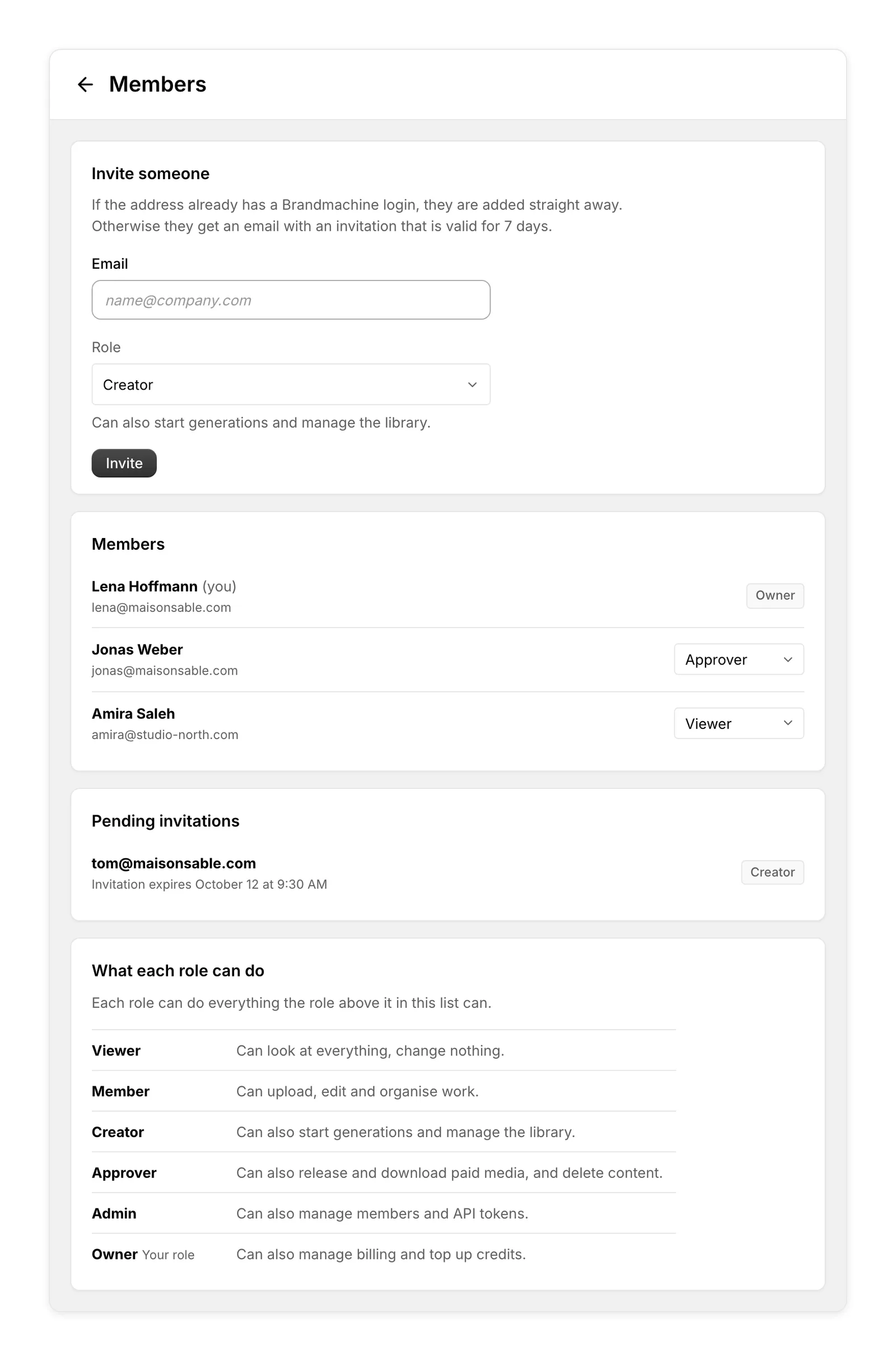
- Open Settings → Members.
- Under Invite someone, enter the person's Email and choose a Role. New people start as Creator unless you pick another role.
- Click Invite.
What happens next depends on the address:
- The address already has a Brandmachine login. The person is added straight away and can sign in now.
- Otherwise they get an email with an invitation that is valid for 7 days. The link lets them set a password, and then they land in your account.
You can't give anyone a role above your own. Roles you can't assign are greyed out in the list.
Invitations that haven't been accepted yet are listed under Pending invitations with their expiry date:
- Resend sends a fresh invitation and restarts the 7 days. The link in the earlier email stops working.
- Revoke cancels the invitation, so its link stops working.
An invitation that runs out disappears from the list. To try again, invite the same address again.
Changing Someone's Role
Admins and Owners change a role with the role selector on the person's row. The change applies right away.
- You can change the role of people whose role is below yours. Owners can also change other Owners.
- You can lower your own role, but not raise it.
- An account always keeps at least one Owner. To hand over ownership, make the other person an Owner first, then lower your own role.
Removing Someone
Click Remove on the person's row and confirm. They lose access on their next request. Everything they made stays in the account.
Any API tokens the person created are revoked at the same time, and those tokens don't come back.
Removed people are listed under Removed. Click Reinstate to give them access again.
You can also remove yourself. You lose access straight away, and someone else has to reinstate you.
Shopify Staff
People who open Brandmachine from inside Shopify Admin appear in the member list as Shopify staff member, because Shopify doesn't share their name or email with Brandmachine. To give someone access to the web app as well, invite them by email. See Shopify App & Web App.
Your Profile and the Account Menu
In the web app, your account's name sits at the top of the sidebar. Click it to open the account menu, which shows who you are signed in as and holds:
- Your profile, where you set the name your colleagues see in the member list and next to approvals.
- Dark mode, a switch for the app's appearance.
- Log out.
Inside Shopify Admin the sidebar isn't shown. Open Settings → Your profile there instead.
API Tokens
Scripts and other systems use the Brandmachine API with an API token, which also has a role, at most Approver. Admins and Owners create and revoke tokens under Settings → API Access. See Authentication for the details.
Activity
Settings → Activity lists who changed the team, generated, released or deleted something, or changed a setting, newest first. Only Admins and Owners can open it.
Each entry says who did what and when; hover the date for the exact time. Use the Show filter to narrow the list to one kind of entry: Team and access, Generations and exports, Deletions, Hidden results, Settings and library, Publishing or Brandmachine support. The list loads 50 entries at a time; click Load older activity at the bottom for more.
Entries are kept for three years.
How the person is named:
- Brandmachine support marks something our support team did on your account, for example while helping you with a request.
- API token "name" marks an action made through the API with that token. Once the token is revoked, it reads A revoked API token.
- An automation marks an action taken by an automated process rather than a person.
- A former member marks someone who is no longer listed with a name or email.
FAQs
Who can see the member list? Everyone on the account. Only Admins and Owners can invite, change roles or remove people.
Can an API token or an Admin top up credits? No. Topping up and managing invoices are for Owners only.
What happens to my work if my role is lowered? Nothing. Your work stays where it is. You just can't take the actions your new role doesn't include.
For further help, contact support@brandmachine.shop.